Mac System Data for AI developers: measure first, delete second
System Data is a category, not a folder. AI models, build artifacts, package caches, logs and app runtime data can all land there — with very different cleanup risk.
macOS System Data is a catch-all measurement for Apple and third-party files that do not fit a more specific storage category. For an AI developer, that can include model stores, build output, package caches, logs, virtual-machine data and tool state. The safe workflow is to map those bytes back to actual paths, separate rebuildable artifacts from working memory, and preserve anything unmeasured or ambiguous.
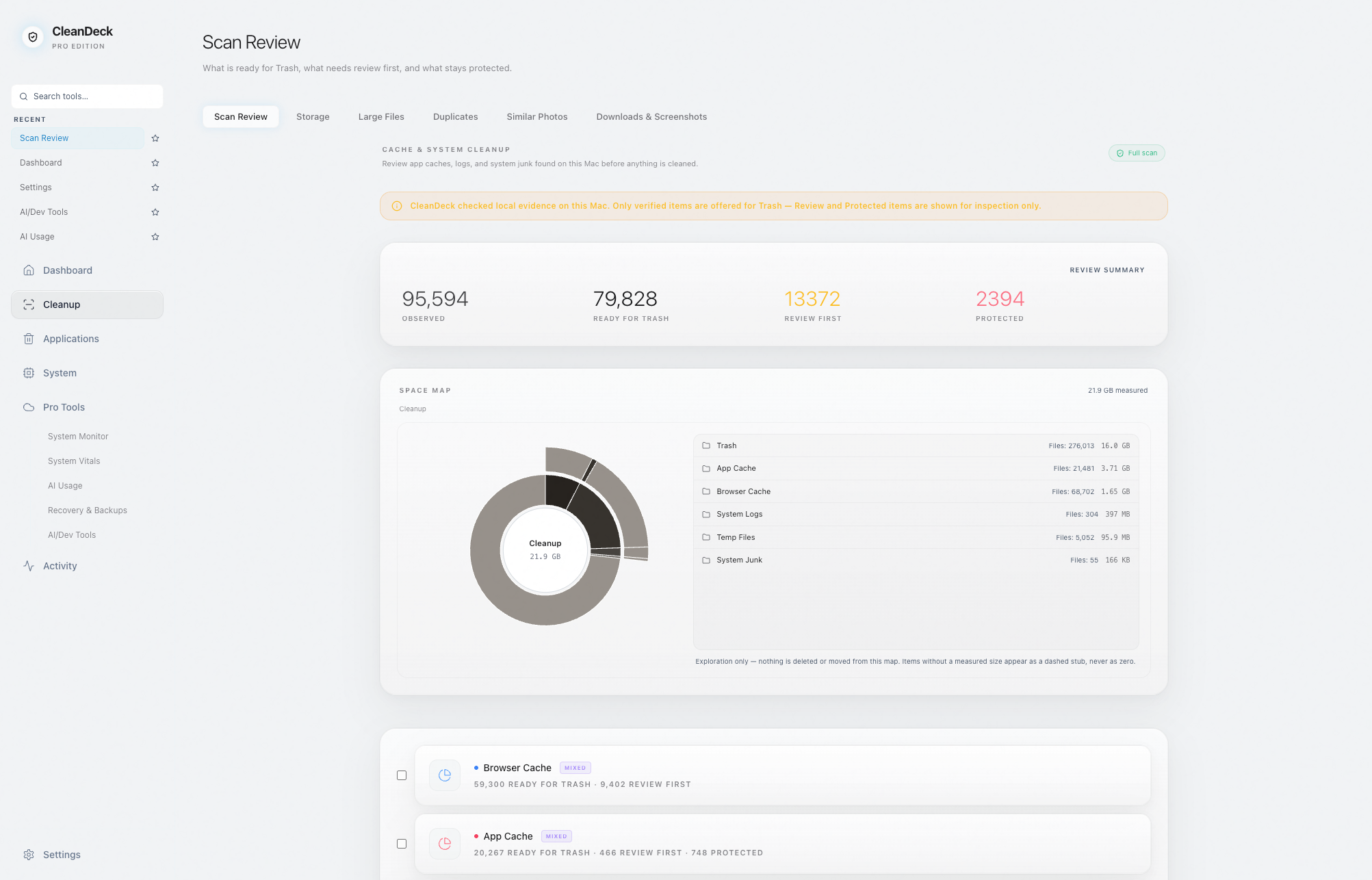
System Data is not one directory
Apple describes System Data (called Other on some versions) as the general category for Apple and third-party files that do not belong to a more specific category. Deleting a folder named System is therefore not the task — and would be dangerous. The useful question is which real paths account for the category on this Mac.
Apple's Storage settings can show overall categories and, on supported versions, a File Browser. Developer workflows add another layer: the same project can create source code, caches, build output, simulators, package stores and local models across several roots.
Common developer and AI storage families
These families are worth measuring, but none is a blanket deletion instruction. The exact tool, leaf, liveness and rebuild cost decide the state.
| Path or family | State | Reason |
|---|---|---|
| ~/Library/Developer/Xcode/DerivedData | Ready | Known rebuildable build output when the exact leaf is verified and inactive. |
| ~/.npm/_cacache | Ready | Dedicated package cache; packages can be fetched again. |
| ~/Library/Caches/<app> | Measure | Some leaves are rebuildable, but broad parent deletion can cross app-state boundaries. |
| ~/Library/Logs and tool log roots | Review | Logs may be active or valuable for diagnosis. |
| ~/.ollama and ~/.huggingface | Protected | Model stores can be large and expensive to restore; size does not make them junk. |
| AI agent sessions and memory | Protected | Resumable work and project context. |
| Databases, keys, certificates and app bundles | Protected | Sensitive or structural data; never inferred safe from location alone. |
Why Finder size and reclaimable space differ
A logical file size is not always the number of bytes the disk will return. APFS clones, hard links, sparse files, cloud placeholders and shared package contents can make a simple sum overstate or understate what is physically reclaimable. Permission blocks create another failure mode: unread data is unknown, not zero.
A trustworthy storage map therefore labels its coverage. CleanDeck's map is exploration-only, reports measured bytes as a lower bound when needed, and keeps unmeasured or blocked nodes visible instead of silently dropping them.
The safe cleanup sequence
Measure the disk and the relevant roots, classify exact leaves, preview the plan, recheck the plan immediately before action, then move approved items to the macOS Trash. Rescan after the move and again after the user empties Trash if the goal is to confirm reclaimed space.
- Do not convert unread or unmeasured data to zero.
- Do not collapse a parent directory into one action if it contains protected descendants.
- Do not treat recent activity as waste.
- Do not claim space is free while the files still sit in Trash.
- Keep the action record separate from the classification explanation.
When CleanDeck is not the answer
If you only need to move a known Photos or video library to an external disk, Finder and Apple's own storage guidance may be enough. If you need a visual whole-disk map without cleanup classification, a dedicated disk visualizer may be the simpler tool.
CleanDeck is designed for the decision boundary: seeing local storage, preserving developer and AI working state, and moving only a confirmed plan to Trash with evidence attached.
Sources and evidence
- Apple — Free up storage space on Mac
Defines System Data/Other as a general category for files not assigned elsewhere.
- Apple — See used and available storage space on your Mac
Documents the Storage view, free space and multiple-volume/container behavior.
- CleanDeck 1.0 classifier and storage-map contracts
Current product source supplies the Ready/Review/Protected rules, blocked-node accounting and exploration-only map behavior described here.
CleanDeck